This guidance assumes you have Admin privileges for your 360 Learning account.

Create Integrations App

1

Log into 360 Learning

Log into your 360 Learning account.
2

Navigate to Parent Group

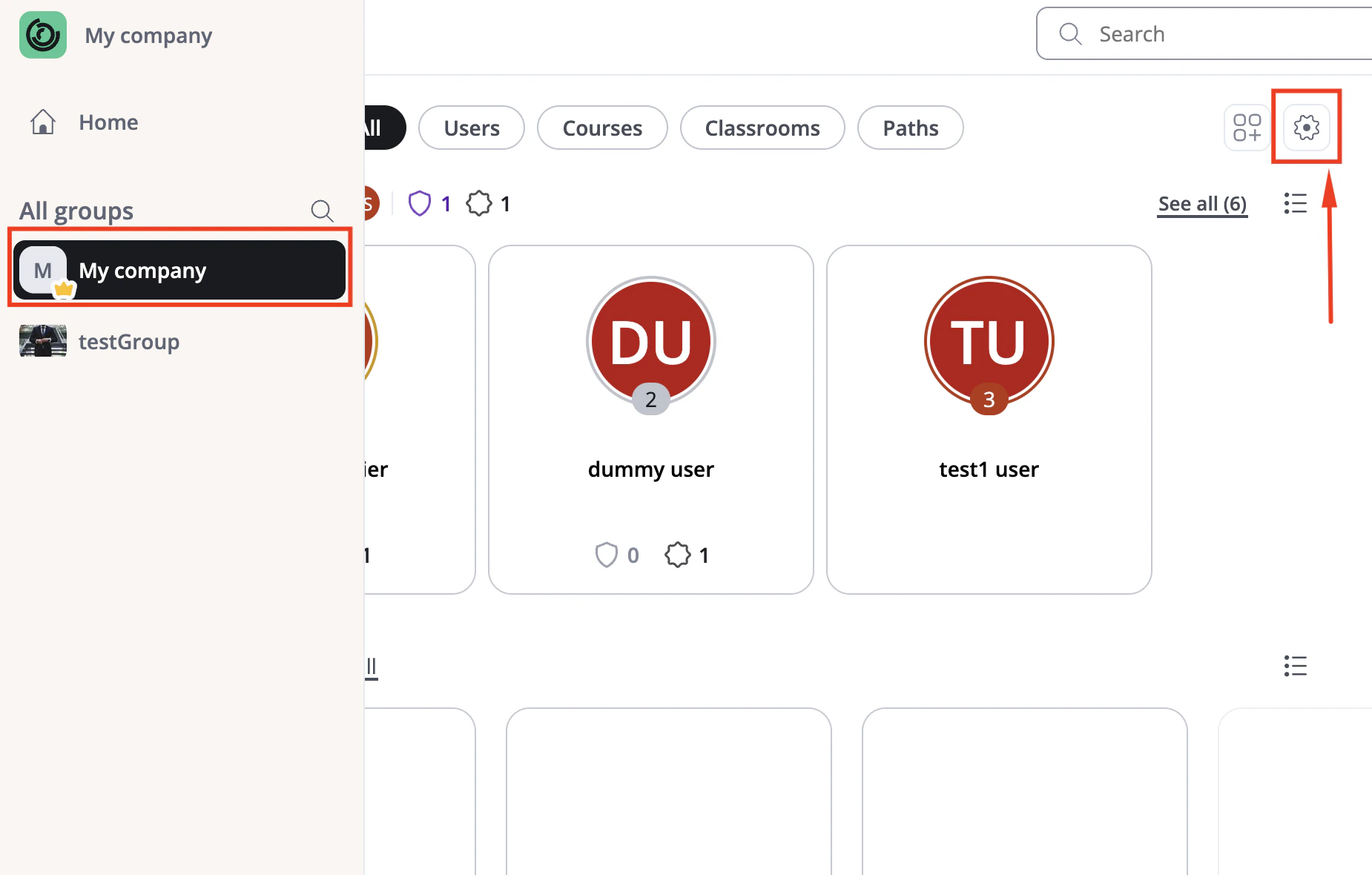
Select Root Parent Group under All Groups.Click on Settings in the top right corner.
Dropdown Menu
3

Configure API Key

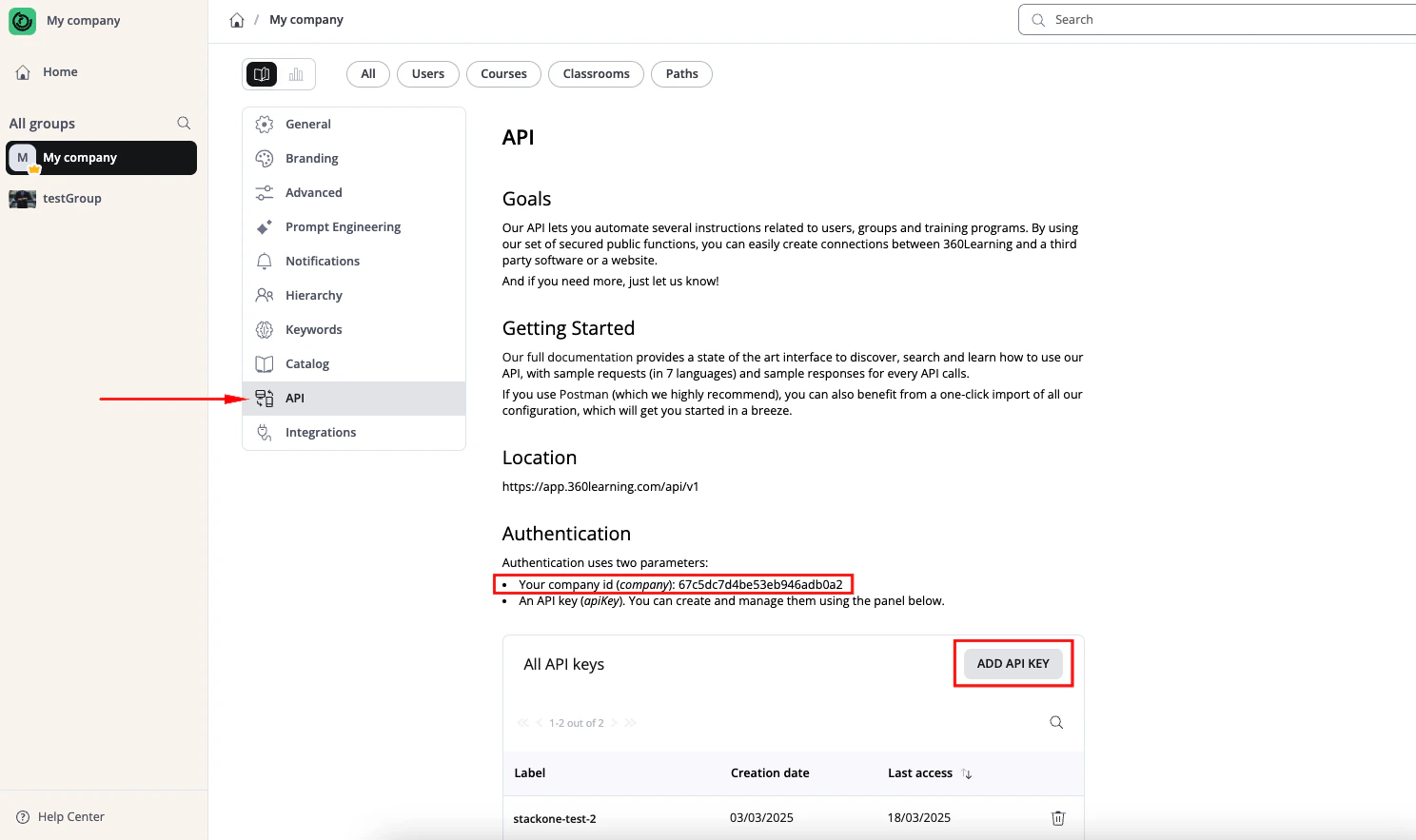
From the left settings menu, select API.Locate the Company ID, in the Authentication section.Click Add API Key to create a new API key.
Dropdown Menu
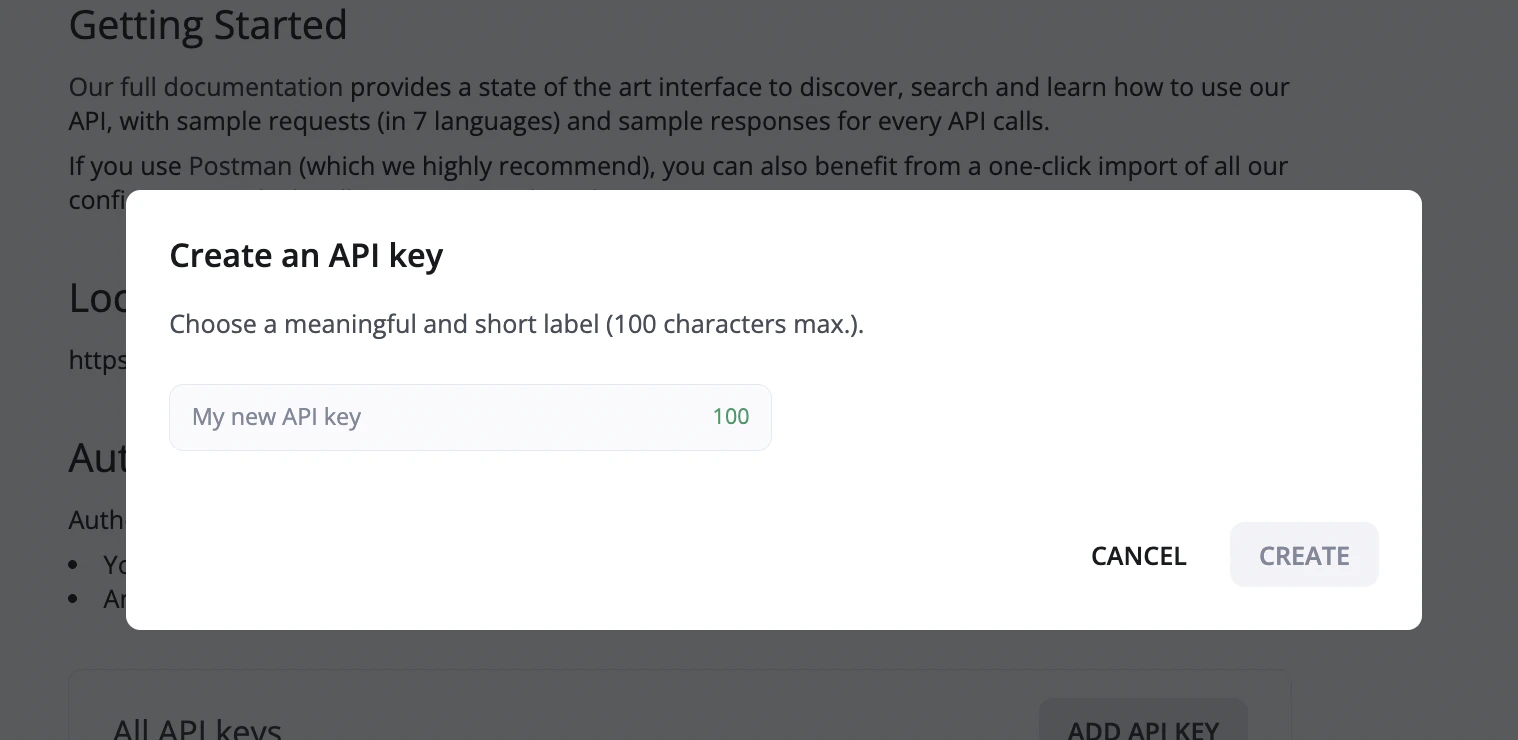
Enter API Key and click Create.
Dropdown Menu
Record the Company ID and API Key for use in the next steps.
4

Find Group ID

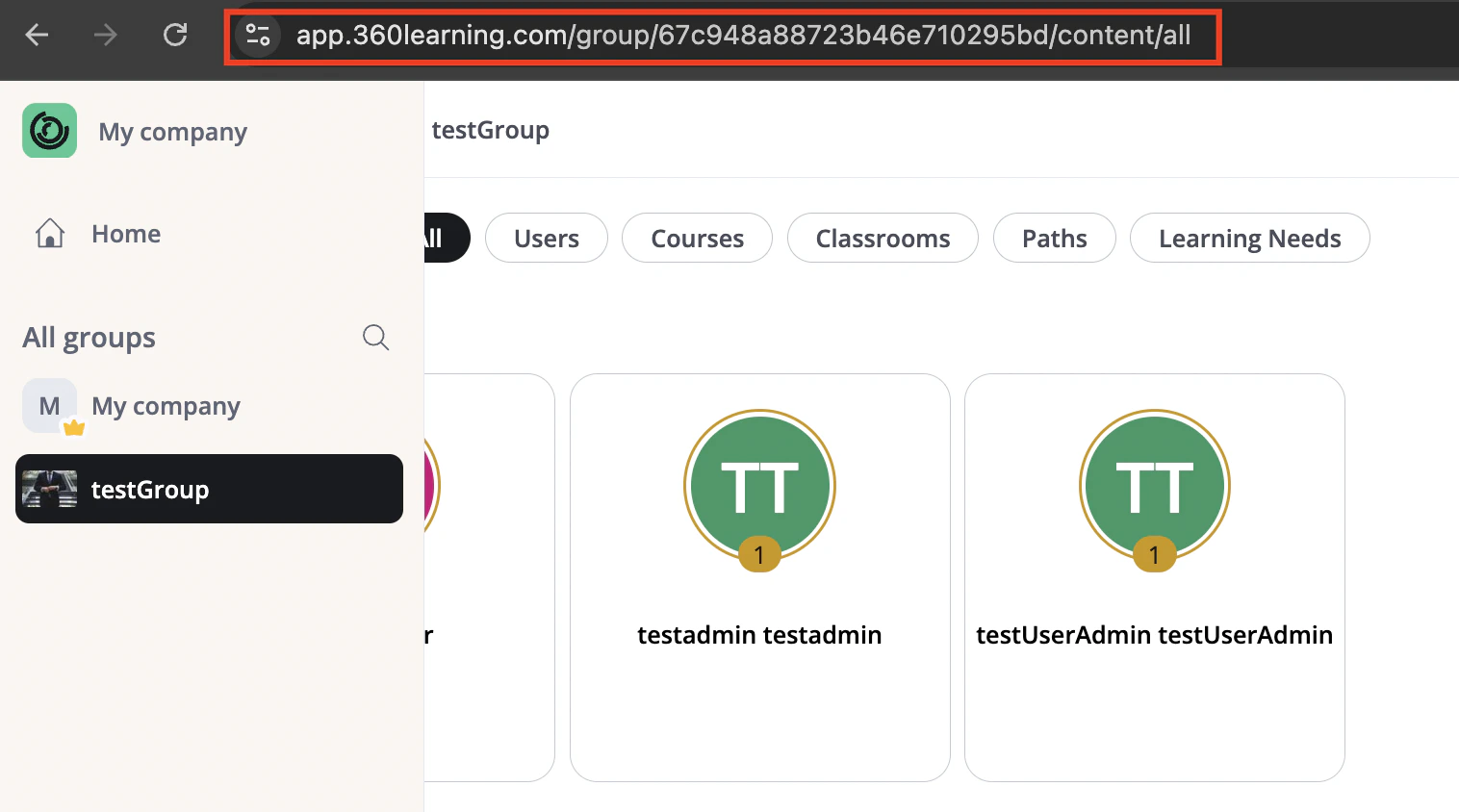
Select the desired group to find the Group Id in the address bar.E.g. If your url is https://app.360learning.com/group/67c948a88723b46e710295bd/content/all, the Group Id is 67c948a88723b46e710295bd.
Dropdown Menu
5

Find User ID

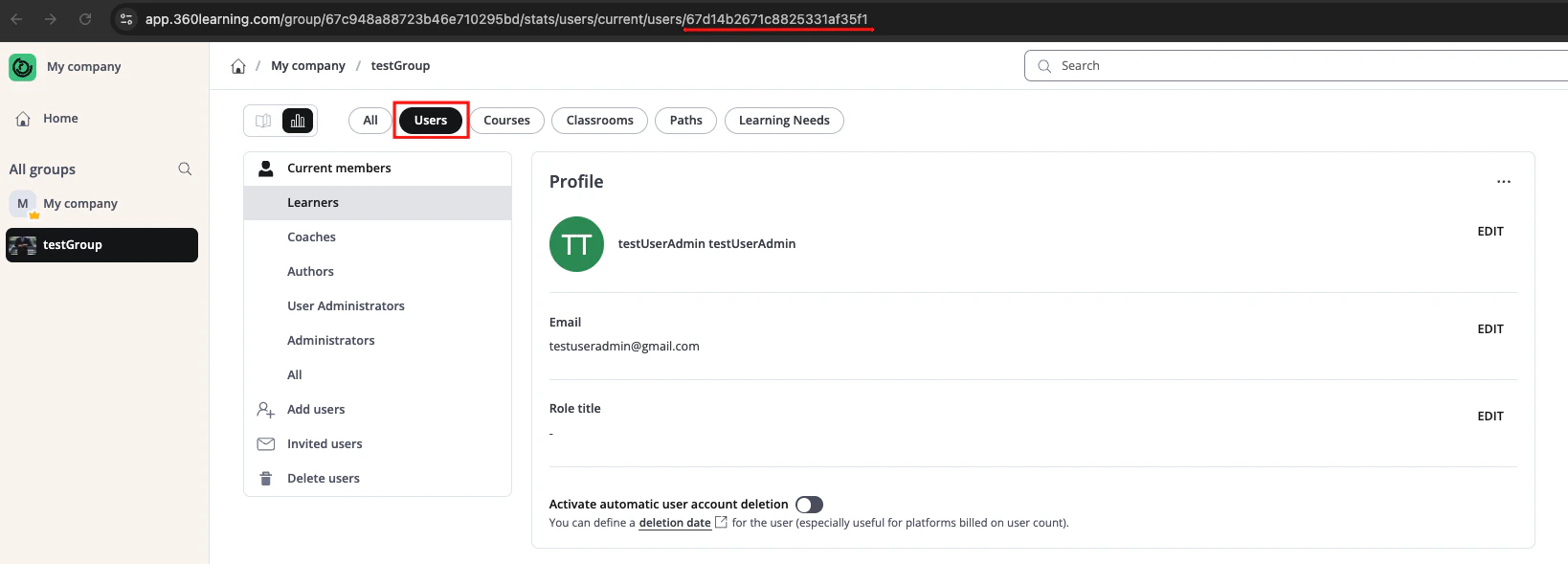
Navigate to Group -> Users.Open the User Profile to find the User Id in the address bar.E.g. If your url is https://app.360learning.com/group/67c948a88723b46e710295bd/stats/users/current/users/67d14b2671c8825331af35f1, the User Id is 67d14b2671c8825331af35f1.
Dropdown Menu

Linking Your Account

You can use the Company ID and API Key to link your 360 Learning account.
1

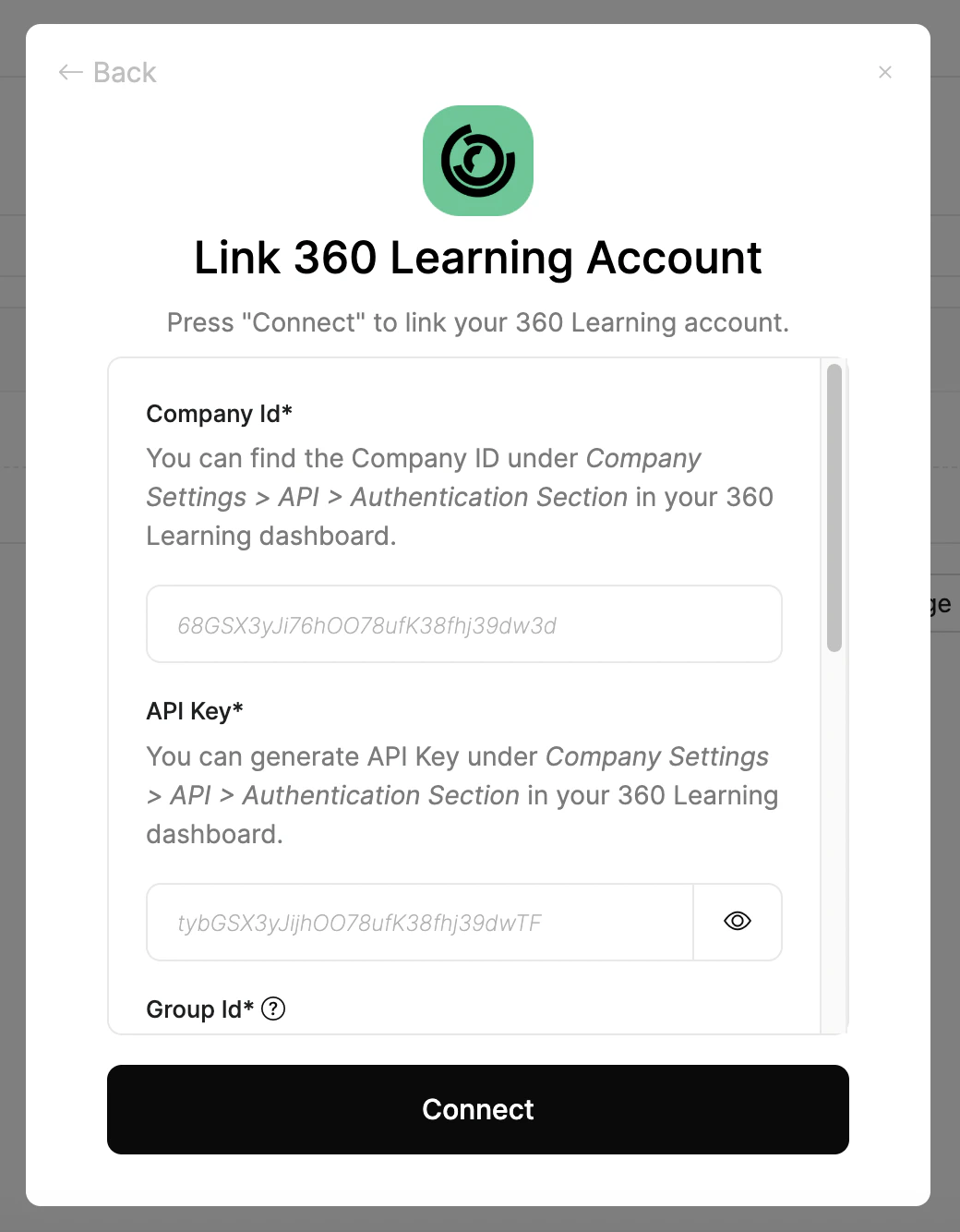
Link 360 Learning Account

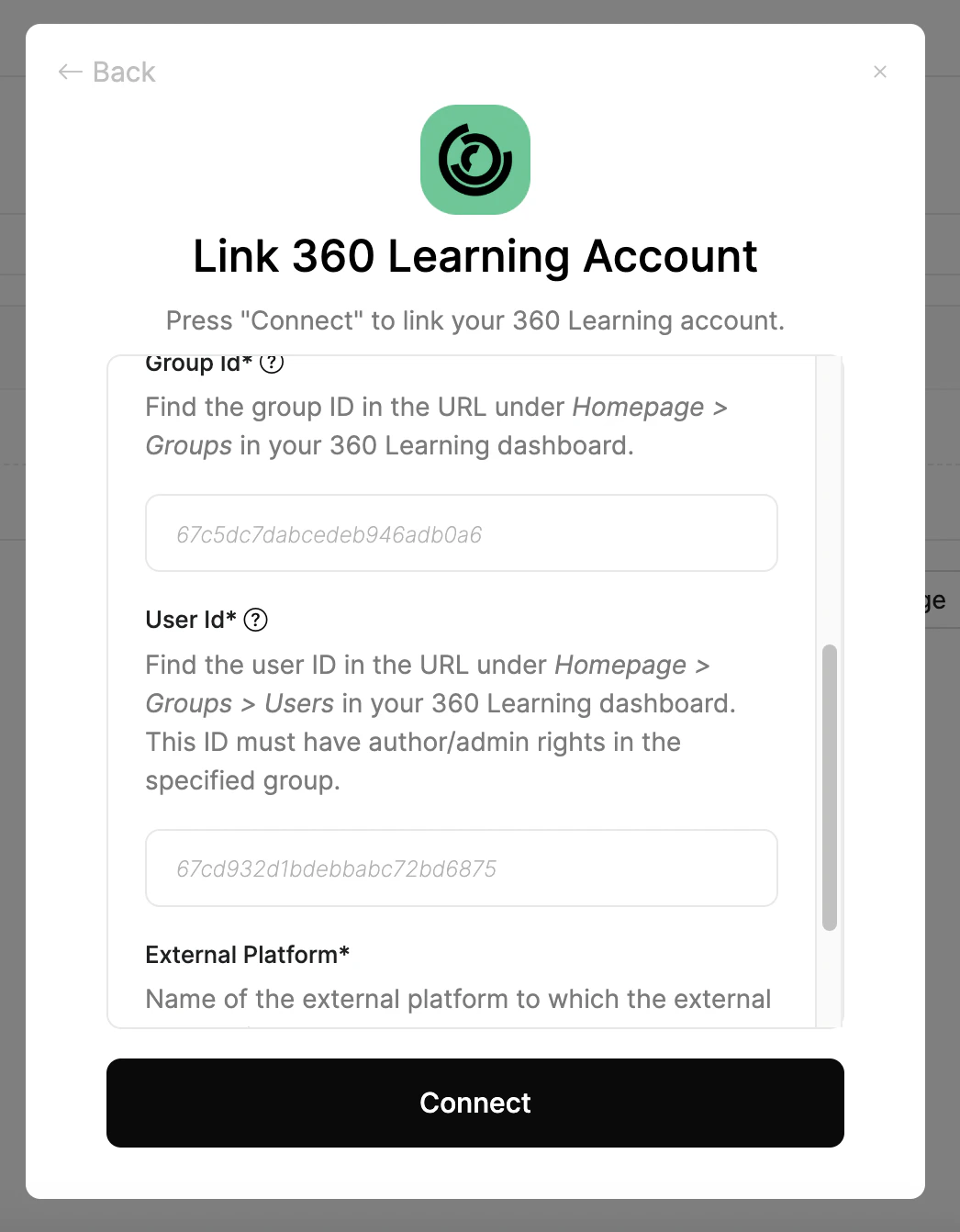
In the modal enter the Company ID, API Key, Group Id, User Id and External Platform.
Link AccountLink Account
Click Connect.